







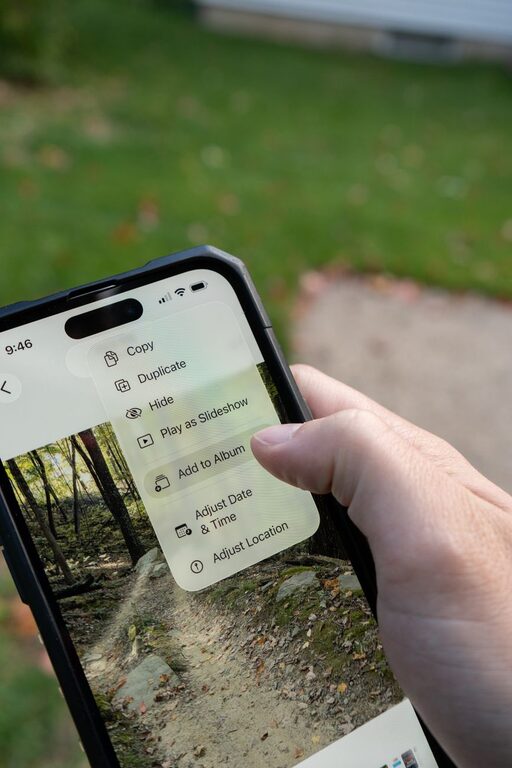
Digital photos are easy to take and difficult to manage. A few years of phone pictures, camera files, screenshots, and shared images can quickly become a confusing mix of folders and duplicates. The good news is that you do not need a perfect system or expensive software to get organized.
With a few consistent habits, you can create a photo library that is easier to browse, search, and protect. The goal is not to sort every image perfectly. It is to make sure your favorite memories are safe and easy to enjoy.
Start With a Simple Plan
Before moving files or renaming pictures, decide what you want your photo library to do. Most people need a system that helps them:
– Find photos by date or event
– Remove obvious duplicates and poor-quality images
– Keep important memories in more than one place
– Add new photos without creating more clutter
– Share or print pictures when needed
Choose a system that matches your habits. If you usually take pictures with your phone, your system should work well with phone storage and automatic uploads. If you use a camera, include a clear method for transferring files to your computer or storage drive.
Avoid creating too many rules. A system that takes several minutes to maintain every week is more useful than one that requires hours of detailed labeling.
Gather Photos From Every Location
Digital photos are often scattered across several places, including:
– Phones and tablets
– Computers and laptops
– Memory cards
– External hard drives
– Cloud storage accounts
– Social media downloads
– Messaging apps and email attachments
Collect your photo files before organizing them. Create a temporary folder called something like “Photo Inbox” and copy files from each device into it. Do not delete the originals yet.
This first step gives you a central working area and reduces the chance of forgetting photos stored on an old device. If you find a memory card or drive that has not been used in years, copy its contents carefully and keep the original unchanged until you confirm that the transfer worked.
Create a Clear Folder Structure
A year-and-month system is simple, flexible, and easy to continue. One example is:
– Photos
– 2024
– 2024 01 January
– 2024 02 February
– 2025
– 2025 01 January
– 2025 02 February
You can also organize by year and event when that better fits your collection:
– 2025
– 2025 03 Spring Break
– 2025 06 Family Reunion
– 2025 12 Holiday Gathering
Use one main structure rather than several competing systems. If you organize some photos by month and others by person, finding files may become harder over time.
Adding the date at the beginning of a folder name keeps folders in chronological order. Use names that are easy to understand months or years later.
Sort Photos in Manageable Sessions
A large photo collection can feel overwhelming, so avoid trying to finish everything in one weekend. Work in short sessions, such as 20 or 30 minutes.
During the first pass, place photos into broad groups:
- Keep
- Review
- Delete
The “Review” folder is useful when you are unsure. It prevents slow decisions from stopping your progress. You can return to it later with fresh eyes.
When reviewing images, remove obvious mistakes such as:
– Blurry photos
– Accidental pocket pictures
– Nearly identical duplicates
– Empty screenshots
– Images with blocked or damaged views
– Temporary pictures that are no longer useful
Keep photos that tell a story, even if they are not technically perfect. A slightly imperfect picture may capture an important person, place, or moment.
Use File Names and Photo Details
File names from phones and cameras are often difficult to understand. You do not need to rename every image individually, but meaningful names can help with important events.
For example, use:
– 2025 06 Family Reunion
– 2024 11 Seattle Weekend
– 2023 08 First Day of School
If you rename multiple files, include the date or event and a sequence number. This creates names such as “2025 06 Family Reunion 001.”
Many photo apps also let you add keywords, people, places, or descriptions. Use these features selectively. Adding a few useful details to favorite photos can make them much easier to find later.
Helpful keywords might include:
– Names of family members
– Vacation destinations
– School events
– Holidays
– Pets
– Important celebrations
Do not rely only on facial recognition or automatic labels. These tools can make mistakes, and features may vary between apps. Review important information yourself.
Remove Duplicates Carefully
Duplicate files can take up space and make browsing frustrating. Some duplicates are exact copies, while others are edited versions with different file names.
Use your photo app’s duplicate finder if it has one, or compare files manually in small groups. Before deleting anything, check:
– Whether the images have different edits
– Whether one file has a higher resolution
– Whether one version includes important information
– Whether the files are stored in another backup location
When uncertain, move possible duplicates to a temporary folder instead of deleting them immediately. Keep that folder for a few weeks before removing it permanently.
Build a Reliable Backup System
Organization does not protect photos from device failure, theft, accidental deletion, or damage. Backups are essential.
A practical approach is to keep at least three copies of important photos in two different types of storage, with one copy stored somewhere separate from your main device. For example:
– Your computer or main photo library
– An external storage drive
– A trusted cloud storage service
Cloud storage can be convenient, but it should not be your only copy. Accounts can have storage limits, syncing problems, or accidental deletions. An external drive is useful, but it can also fail, so keep it disconnected when it is not being used for backup.
Check your backups from time to time. Open several older files to confirm they work, and make sure new photos are included. A backup that has never been tested may not be dependable when you need it.
Protect the Original Files
When editing photos, try to preserve the original image. Many photo apps use nondestructive editing, which allows you to change the appearance without replacing the original file.
For important pictures, keep:
– The original file
– A high-quality edited version
– A smaller copy for sharing, if needed
Avoid repeatedly saving and resaving compressed images, since this can reduce quality. If you scan printed photos, save a high-quality master copy and create smaller versions for email or social media.
Make New Photos Easier to Manage
A good system should continue working after the initial cleanup. Choose one routine for new photos, such as organizing them once a month.
A monthly routine might include:
- Import new photos from your phone or camera
- Move them into the correct year and month folder
- Delete obvious mistakes and duplicates
- Add names or keywords to important events
- Confirm that the latest files are backed up
Try to avoid leaving photos in a permanent “to sort” folder. A temporary inbox is useful, but schedule time to clear it regularly.
Preserve the Stories Behind the Images
A photo’s value often comes from the story attached to it. Add short notes to meaningful images or albums. Record who is pictured, where the photo was taken, and why the moment mattered.
You can store these details in photo captions, a text file, or an album description. Even a brief note can help future viewers understand the memory.
Finally, make time to enjoy your collection. Create a yearly album, print a few favorites, or share a small selection with family and friends. Organizing digital photos is not just about managing files. It is about keeping meaningful moments available for the future.